
This week’s Shop Smarts focuses on a single feature of Fusion 360 that I recently found quite useful – Derive.
Biotech asked us to make letters that can hold a liquid. They needed several of these letters, so we decided to make 3D printed cubes that could have the shape of the letter extruded, or cut out of, the full length of the cube creating a void in the cube for the letter. The liquid needs to be visible, so we will place a gasket, cut to shape, on each side of the cube and then screw down a sheet of acrylic on the two open sides of the cube. We would need multiple cubes, each with a different letter cut out and a different matching gasket.
I went ahead and made a cube, without any cutout, but with holes for heated screw inserts, the heated inserts, and a gasket (orange layer) without the letter cutout – basically a blank template.
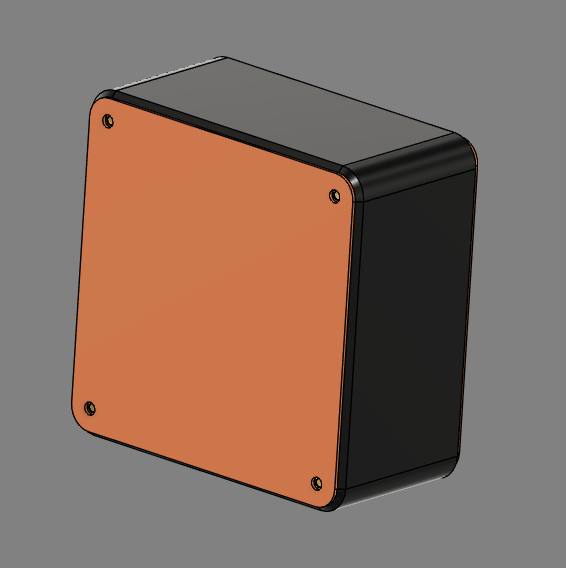
Next, I used Derive to bring the template into a new file. With derive I can add changes to the object such as extrude cutting a letter through the cube and the gasket. The changes to the derive only go upstream – meaning they only affect that instance of the derive and have no effect on the original file. I can also add as many derives of the original template into the new file. If, for instance, I need to change the template file, such as adjusting the size of the block, those changes will be pushed to each Derive. Changes to the original template file will be pushed to each derive, which makes managing each block very simple.
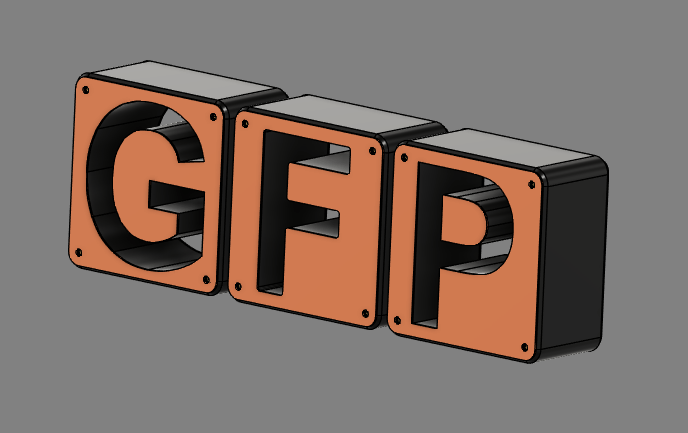
If you want to learn more about the Derive feature in Autodesk Fusion, here is a short video that goes into more detail.
Well, that’s all for this week. Thank you for not reading this.
 MVTHS Engineering
You must be logged in to post a comment.